Controls
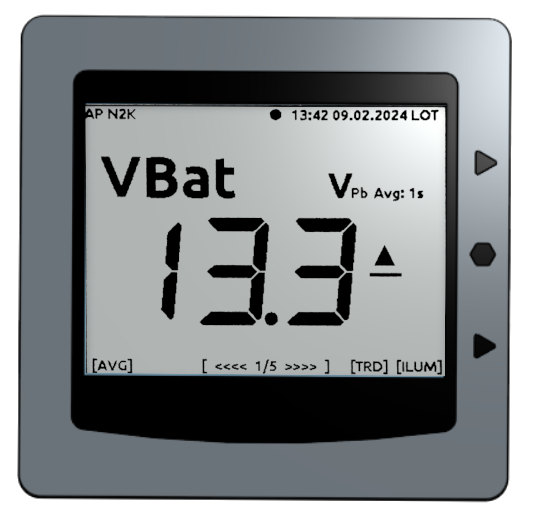
Status bar
The status bar is used to display status information. This includes:
- Access Point Status Indicator
AP - Access Point
- Status display of active bus systems and components
N2K - NMEA2000
183 - NMEA0183
USB - NMEA0183 via USB
TCP - NMEA0183 via TCP (WiFi)
GPS - GPS sensor of the OBP40 (position found)
Sign of life (pulsating point)
Date and time (country-specific)
Display of time zone
UTC - Universal Time
LOT - Local Time
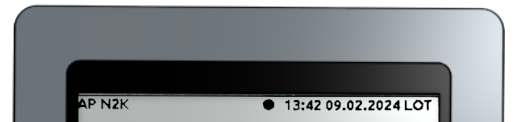
The status bar is visible on all display pages; it shows the current status of the device.
Note
The content displayed on an e-paper display remains visible when the device is switched off. A pulsating dot in the status bar indicates that the device is active. If the dot is not blinking, the software is inactive or the device has been switched off.
Display area
The central area contains the display area. All relevant information is shown there. The content of the display area changes each time you switch to a new page. The display area is updated every second as a partial image refresh.
Due to the e-paper technology, ghost images from previous display states may appear on the screen after some time. To remove these ghost images, a full refresh of the display is performed every 10 minutes. During this process, the entire image content is inverted several times, then cleared, and subsequently rewritten. A full refresh is indicated by a brief flicker of the display. The same process occurs 4 seconds after a page change. This allows for quick access to multiple pages in succession. Only after 4 seconds is a full refresh performed on the most recently viewed page, thus removing ghost images from older pages. The regular full refresh is enabled by default and can be disabled in the configuration settings if needed.
The appearance of ghost images depends on the display temperature of the OBP40. At lower temperatures, ghost images are more noticeable and the display reacts more slowly than at higher temperatures. For the first five minutes after power-on, a full refresh is performed every minute to allow the display to acclimatize.
Note
In extremely bright sunlight, the contrast of the display content may be lost. Black areas of the screen will then appear gray. The display is not defective in this case. After a full refresh, the display will regenerate and the contrast will be fully restored.
Footer
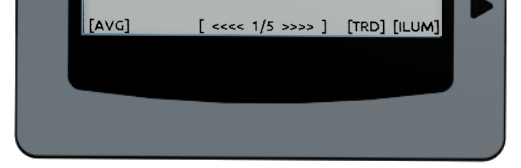
The footer is used to label the keyboard functions. The keyboard layout changes depending on the content of the display page. Active keyboards are labeled with abbreviations in square brackets, such as [AVG]. There may also be display pages that do not contain any keyboard functions. Additional information is displayed in the center of the footer.
[ <<<< 1/5 >>>> ]- Swipe gesture active[ Keylock active ]- Keys locked
If the swipe gesture is active, the current page and page number are displayed in the information area.
Jog dial and buttons
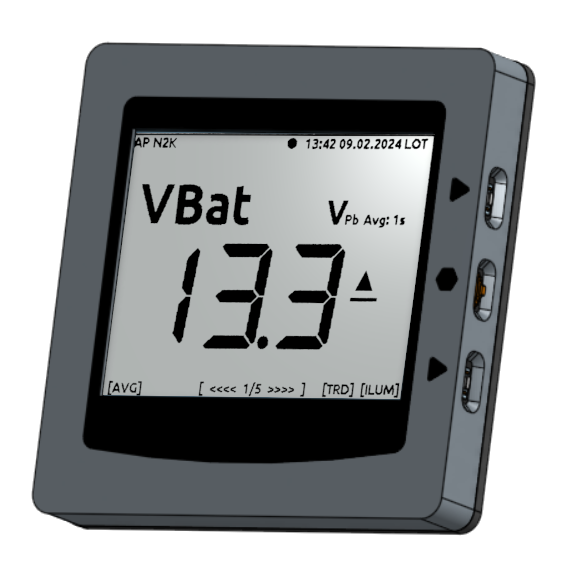
The OBP40 has a jog dial and two buttons on the right side of the display. The dial is used to select pages. The buttons allow changes to be made on some pages. The following functions are available:
Turn dial up - Back to previous page
Turn dial down - page forward
Press dial - Sleep mode on/off
Top Button - Page-Specific Function
Down Button - Page-Specific Function
Note
The jog dial can only be pressed when the dial is in the center position or rest position.
Reset-Taster
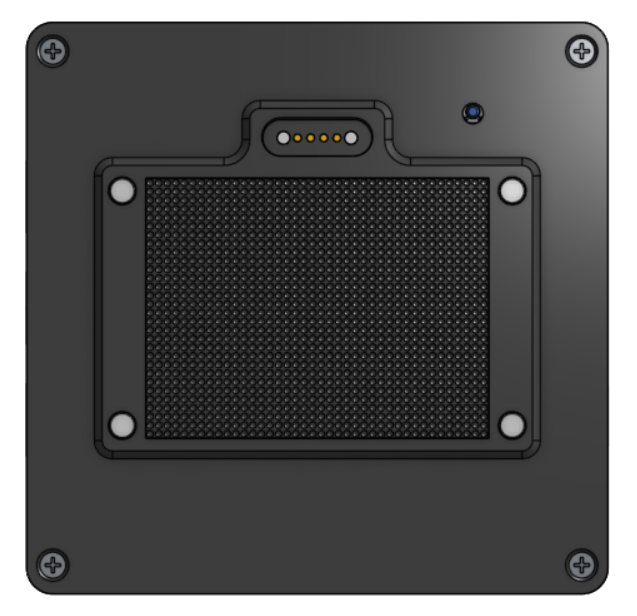
The reset button is located on the back of the display, in the upper right corner behind a small hole. The reset button is not used during normal operation. However, it can be useful to perform a manual reset during programming procedures. To trigger the reset, use a non-conductive, narrow object and gently press the button until you feel a click.
Warning
Do not use conductive objects. These can cause short circuits on the circuit board and damage the device.